

You can create custom palettes in Mandelbrot Metal Pro in three ways:
- Import a gradient from a photo.
- Use the CLI version.
- Use PaletteWright™ on your Mac or iPad.
This tutorial focuses on the third approach: designing a palette in PaletteWright™ and bringing it into Mandelbrot Metal Pro.
A familiar fractal can feel entirely different when you change its palette. Deep blues can suggest an ocean at night. A narrow band of gold can pick out delicate edges. Teal and coral can turn the same structure into something bright and organic.
With PaletteWright, you can design those colors on your Mac or iPad and export a palette specifically for Mandelbrot Metal. The process starts with a handful of colors and ends with a reusable file you can import into your fractal library.
This guide walks through a simple six-stop palette, explains the Mac and iPad export paths, and shows how to apply the result in Mandelbrot Metal.
What you need
- PaletteWright on a Mac or iPad. Its Free plan includes the Mandelbrot Metal export format and capacity for up to 10 custom or imported palettes in one project.
- Mandelbrot Metal with Pro access, which is required for custom palette import.
- A place to save the exported JSON file, such as iCloud Drive, that you can access from the device running Mandelbrot Metal.
You do not need PaletteWright Pro for this tutorial. The two apps have separate feature entitlements.
PaletteWright’s broader workflow includes Source, Build, Roles, Validate, and Ship. For a fractal palette, concentrate on Build and Ship, using Source if you want to begin with a photograph or other imported colors. You do not need to assign interface roles or compile a design system.
1. Start with a small palette
On Mac, choose File → New Palette. On iPad, use the + / New Palette control in the library. Give your palette a descriptive name; we will use Midnight Tide.
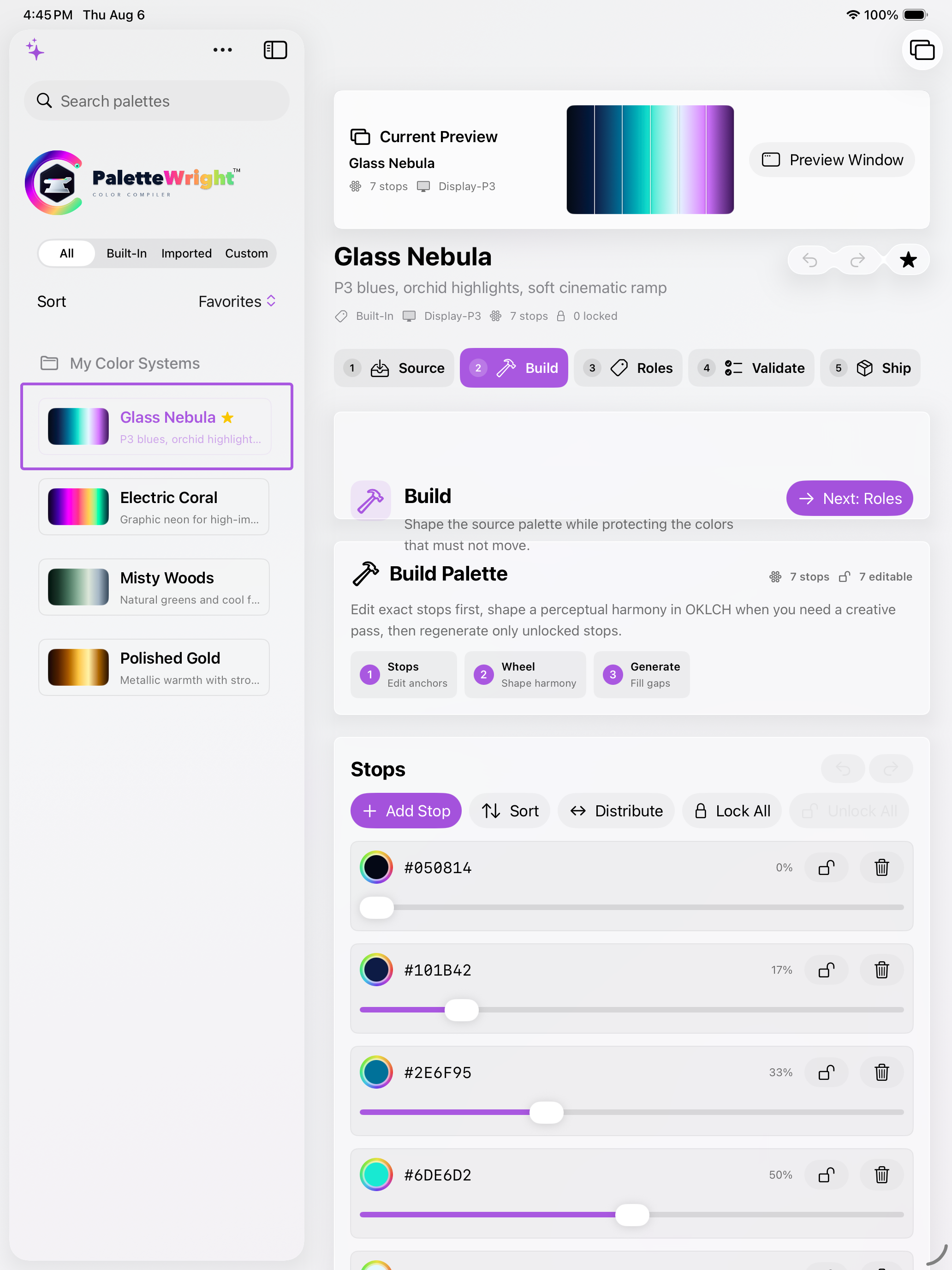
Open Build and find the Stops controls. A stop is a color at a particular position along the gradient. The first endpoint is 0%; the last is 100%. The colors between them form the transitions that Mandelbrot Metal will use to color the fractal.
For your first attempt, six stops are plenty. Use Add Stop or the trash control to adjust the number of stops, then use the color swatches to choose the colors.
Try this recipe in sRGB:
- 0% — Deep navy: #071426
- 20% — Ocean blue: #174A70
- 40% — Teal: #22A6A1
- 60% — Pale sand: #F4DC9A
- 80% — Coral: #D97045
- 100% — Deep navy: #071426
The hex values are exact references; the visible hex label in the stop row is a readout. Open the color picker to change the color. You can also download the Midnight Tide sample palette and import it into PaletteWright to begin with these exact values.
The repeated navy endpoint makes the end of the gradient meet its beginning with the same color, which can help soften a visible join when colors cycle.
2. Shape the transitions
Use each stop’s position slider to decide how much space a transition occupies. Sort puts stops in position order; Distribute spaces them evenly. Start with even spacing, then make deliberate changes.
Moving two stops closer together compresses the transition between their colors. Moving them farther apart gives that transition more room. A short transition can produce a sharp accent; a longer transition can feel softer.
For Midnight Tide, begin with the evenly spaced recipe. After trying it on a fractal, experiment with moving the pale-sand stop closer to the coral stop. Compare how the warm section changes before altering anything else.
Keep some variation in brightness as well as hue. A palette made entirely of similarly bright colors can make neighboring details harder to distinguish. Dark navy, medium teal, and pale sand give this example a useful range to explore.
If a color is central to your idea, use its lock control before experimenting with generation. PaletteWright’s Harmony Wheel can help you explore related hues and apply changes to unlocked stops. It is an optional creative step; you can complete this entire palette by editing stops manually.
3. Inspect the gradient
Look at Current Preview before exporting. Check for an accidental color, an abrupt transition you did not intend, or a bright section that overwhelms the rest of the ramp.
Start with sRGB for this exercise. PaletteWright also supports Display-P3, and the dedicated Mandelbrot Metal export includes a color-space label. Choose the color space intentionally and evaluate the result on the display where you will use it.
Exact LUT Preview lets you inspect the gradient at PaletteWright’s chosen sample count. It can be useful for diagnosing stepping, but the Mandelbrot Metal export carries the palette’s stops, name, color space, and optional notes—not PaletteWright’s preview settings. Set rendering options separately in Mandelbrot Metal.
A gradient preview is a useful first check. The real test is how the colors behave on a fractal.
4. Export from your Mac
Open Ship, expand Export, and set Format to Mandelbrot Metal.
This choice matters: PaletteWright offers several JSON-based formats. Select the format named for the destination app rather than the general JSON export.
Click Save or Save Export, depending on the window layout. Save the file somewhere convenient, such as an iCloud Drive folder named “Fractal Palettes.” Keep the .json extension. A descriptive filename such as Midnight-Tide.mandelpalette.json makes it easy to recognize later.
If you will use Mandelbrot Metal on your iPad, wait for the file to become available there in Files before importing it.
5. Export from your iPad
The palette-building process is the same on iPad: open Build, tap a color swatch, adjust the stop positions, and review the gradient.
To export, open Ship → Export, choose Mandelbrot Metal, and tap Share.
The iPad export shares JSON text. Mandelbrot Metal’s palette importer opens files, so the handoff needs one small additional step: save that text as a plain-text file ending in .json.
One iPad-only approach uses Apple’s Shortcuts app:
- In PaletteWright’s share sheet, choose Copy.
- Create a shortcut with Get Clipboard, followed by Set Name, followed by Save File.
- In Set Name, use Midnight-Tide.mandelpalette.json. Pass that result to Save File and enable Ask Where to Save.
- Run the shortcut and choose a folder in Files.
The file must contain the JSON itself, without added commentary or rich-text formatting. If you prefer, paste the copied text into a plain-text editor that can save a .json file.
Once the file is saved, the import steps are identical whether you built the palette on Mac or iPad.
6. Import into Mandelbrot Metal
On iPad, open Mandelbrot Metal’s More (…) menu and choose Manage Palettes. Tap Import, then select your saved JSON file in the file picker.
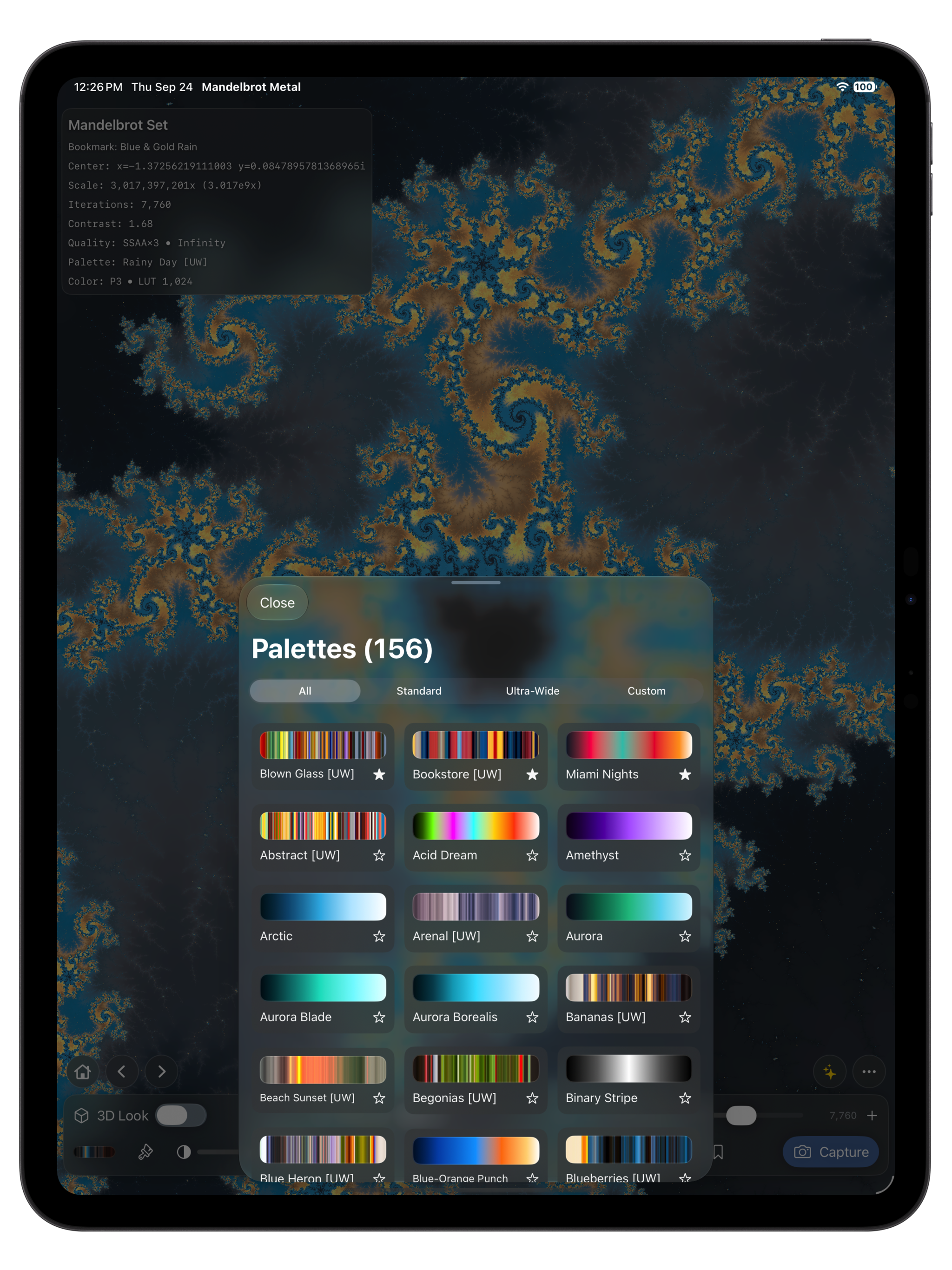
Close Manage Palettes and open the palette browser. Choose the Custom category and select your imported palette. Its name may include the app’s [C] custom-palette suffix; importing another palette with the same name can also add a distinguishing name suffix.
Importing adds the palette to your library. Selecting it in the palette browser applies it to the fractal.
7. Refine it on a real fractal
Choose a favorite bookmark or an area with both broad shapes and fine detail. Keep the view and rendering settings steady while comparing palettes, so you can see what your color changes actually do.
Ask three questions:
- Can I still see the fine structure? If neighboring regions blend together, try increasing the brightness difference between some stops.
- Where does my eye go first? If the brightest color takes over, shorten its portion of the gradient or reduce its intensity.
- Does the palette have the mood I wanted? Adjust one or two stops before replacing the entire ramp.
Return to PaletteWright, make one change, and export another version. Names such as Midnight Tide Soft and Midnight Tide Bright make comparisons easier.
Try the palette on more than one location. A ramp that looks restrained on a broad shape may become busy in an area with tightly packed detail.
If something does not look right
The file will not import: Confirm that you chose Mandelbrot Metal as the export format, saved actual JSON text, and retained the .json extension. A PNG preview, library backup, or design-token export serves a different purpose.
Import asks for an upgrade: Custom palette import requires Mandelbrot Metal Pro. PaletteWright’s free export does not unlock features in Mandelbrot Metal.
The palette imported, but the picture did not change: Open the palette browser and select it under Custom.
The fractal looks different from the gradient strip: The strip shows colors in order. The fractal distributes them according to its rendering and coloring settings. Evaluate the result in Mandelbrot Metal, and remember that PaletteWright’s LUT-preview and dithering-preview controls are not transferred in this export.
A stop will not change: Check its lock icon before editing its color or position.
Make it your own
Once you have completed the first palette, try starting with colors from a photograph: a coastline, autumn leaves, city lights, or a painting. PaletteWright’s Source tools can provide the starting colors; Build is where you arrange them into a gradient with a useful balance of shadows, midtones, and highlights.
Start small, test on a familiar fractal, and save the variations you like. A few carefully placed colors can give an entire exploration a new character.
Explore PaletteWright and its Mac user guide for more about palette authoring and export.