

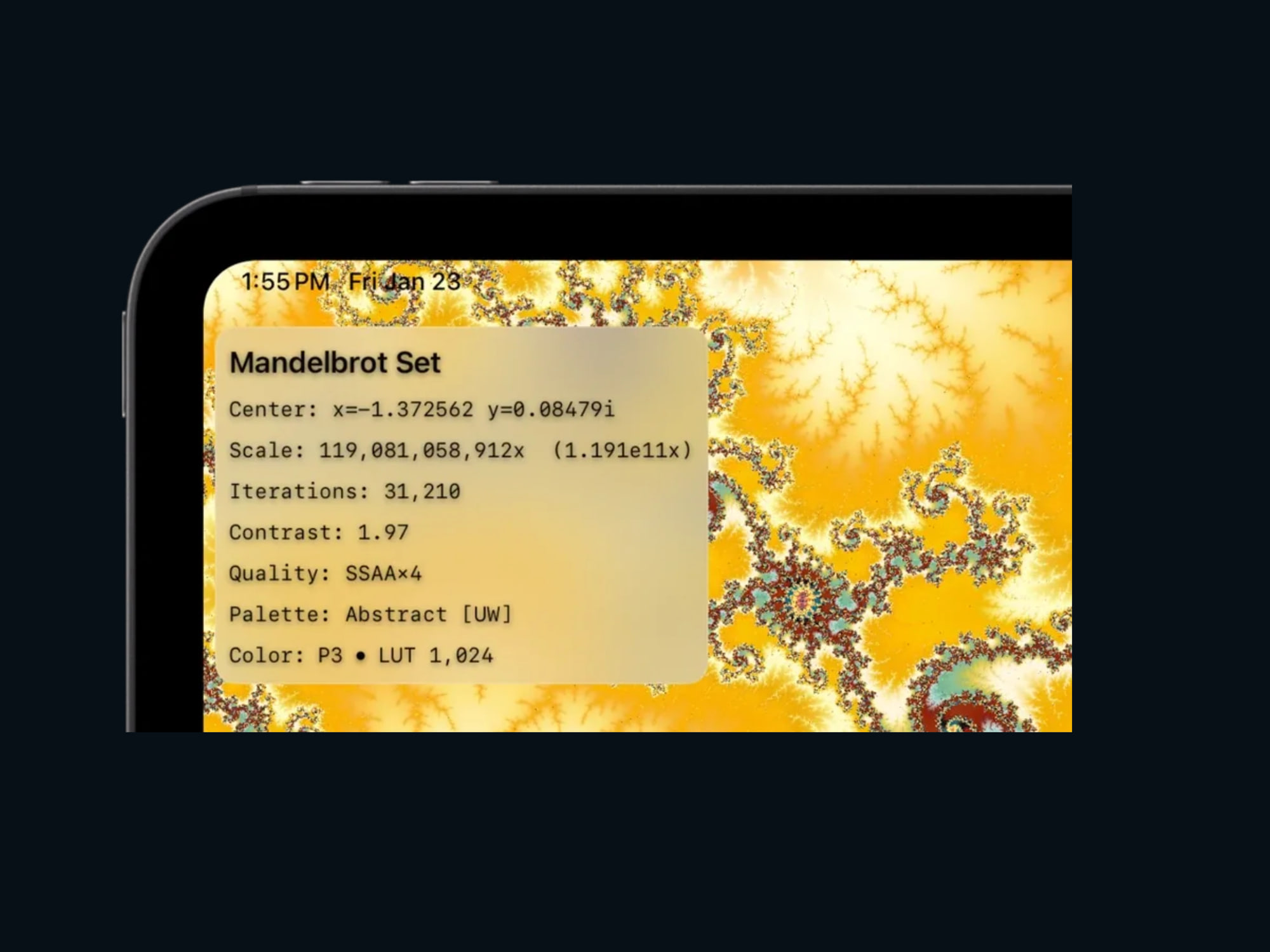
The HUD (Heads-Up Display) in Mandelbrot Metal is not decoration. It’s an instrument panel.
Every value shown on screen exists for one reason: it directly affects the image you’re looking at. The HUD tells the truth about the math, the rendering pipeline, and the color system—without getting in the way of exploration.
This post explains why the HUD is designed the way it is, and how to read it, top to bottom.
Why the HUD Exists at All
Mandelbrot Metal pushes deep zoom, high iteration counts, GPU and CPU precision paths, and a professional-grade color system. In that environment, hiding information would be misleading.
The HUD answers four essential questions at a glance:
- Where am I in the complex plane?
- How deep am I zoomed?
- How is this image being computed and shaded?
- How is color being generated and mapped?
Nothing is inferred. Nothing is ambiguous. If an image leaves the app as a screenshot or export, the HUD tells you exactly how it was produced.
The HUD as an Instrument Panel
Rather than a floating status overlay, the HUD is structured like a cockpit panel:
- Mathematical state first
- Rendering quality next
- Color system last
Related information is grouped visually, with restrained opacity and spacing so the HUD remains readable—but never dominant.
A Walk Through the HUD
I'll now walk you through the following example of the HUD readout:
1. Fractal Title
Mandelbrot Set
The title identifies which fractal is being rendered. As additional fractals are added over time, this prevents ambiguity when exporting images, sharing screenshots, or revisiting bookmarks.
2. Center: Exact Complex Coordinate
Center: x = -0.177055 y = 0.6601321i
The center of the view is now shown explicitly as a complex number:
c = x + yi
This is the exact complex coordinate at the center of the screen.
Why this matters:
- It directly matches the mathematical definition of the Mandelbrot set
- It uniquely identifies your location
- It is stored verbatim in bookmarks
- It guarantees deterministic re-renders
This change makes the HUD more mathematically honest and more useful to advanced users, while remaining readable to newcomers.
3. Scale: Zoom Depth
Scale: 14,294,871× (1.429e7×)
Scale shows how deep you’ve zoomed relative to the full Mandelbrot set.
- Larger values mean deeper zoom
- Scientific notation appears to the right of the scale value
- Scale influences precision handling and Deep Mode behavior
If you ever wonder “how deep is this image really?”, this number answers that question.
4. Iterations: Computational Detail
Iterations: 486
Iterations control how much work is done per pixel.
- Higher iterations resolve finer boundary detail
- Auto Iter adjusts this dynamically
- Manual control allows deliberate artistic or analytical choices
Iterations are one of the primary trade-offs between performance and fidelity.
5. Contrast: Perceptual Structure Control
Contrast: 1.32
Contrast is part of the rendering pipeline—not a cosmetic filter.
- It affects how structure and depth are perceived
- It is deterministic
- It is stored in bookmarks
- It now appears clearly beneath the iteration count
If two images share coordinates but look different, contrast is often the reason.
6. Quality Line: How the Image Is Rendered
Quality: SSAAx4 · 3D
This single line summarizes major rendering modes:
- SSAAx4 — supersampling anti-aliasing for smoother edges. This shows when it's being used and the level. In this case, 4×.
- 3D — 3D Look shading is enabled
not shown in this example:
- DM — Deep Mode is active for high-precision CPU tiling
These indicators show only when they're being used.
The Quality indicators exist so a render can be understood instantly—no menus required.
7. Palette: Active Color Scheme
Palette: Chihuly [UW]
This identifies the active color palette.
- [UW] indicates an Ultra-Wide palette (768 steps)
- Ultra-Wide palettes reduce banding at deep zoom
- Palette choice strongly influences visual character
When comparing images, this line matters as much as the coordinates.
8. Color Line: LUT Size and Color Space
Color: P3 · LUT 1,024
This line reveals how color is generated:
- P3 — Rendering is done in Display P3 color space
- LUT 1,024 — The color lookup table contains 1,024 discrete steps
Why this matters:
- Larger LUTs produce smoother gradients
- Color space affects accuracy across displays
- Exact LUT mode (when enabled) guarantees zero interpolation
For color-critical work, this is essential information.
Clear Indicators for Advanced Modes
Advanced features are shown explicitly and concisely:
- 3D — 3D Look shading enabled
- DM — Deep Mode active
They appear inline with the SSAA indicator, separated by bullets, so the rendering state is visible at a glance without clutter.
Designed to Inform — Then Get Out of the Way
Despite the depth of information, the HUD is designed to disappear once you start exploring.
Subtle opacity, restrained typography, and careful grouping keep attention where it belongs: on the fractal itself.
The goal wasn’t to add more data—it was to make the existing data clearer, more honest, and more useful.
Why This Matters
Mandelbrot Metal is built on the idea that transparency is a feature.
When you push deep zooms, precision rendering, and advanced color systems, the app should tell you exactly what it’s doing.
The HUD ensures that:
- Images are reproducible
- Decisions are visible
- Exploration remains intentional
Clear math.
Clear rendering.
Clear color.
And then, step aside and let you explore infinity.
Fractal of the Week:
"Spear in the Garden"
A deep zoom into a region with a spear-like projection containing mini-mandelbrots.
Center: x=-1.372562 y=0.08479i
Scale: 56,223,767,719x (5.622e10x)
Iterations: 21,650
Contrast: 2.33
Palette: Roji-en [UW]
Color: P3 • LUT 1,024
👉 Get downloadable bookmarks you can import into Mandelbrot Metal on the Community Portal.