

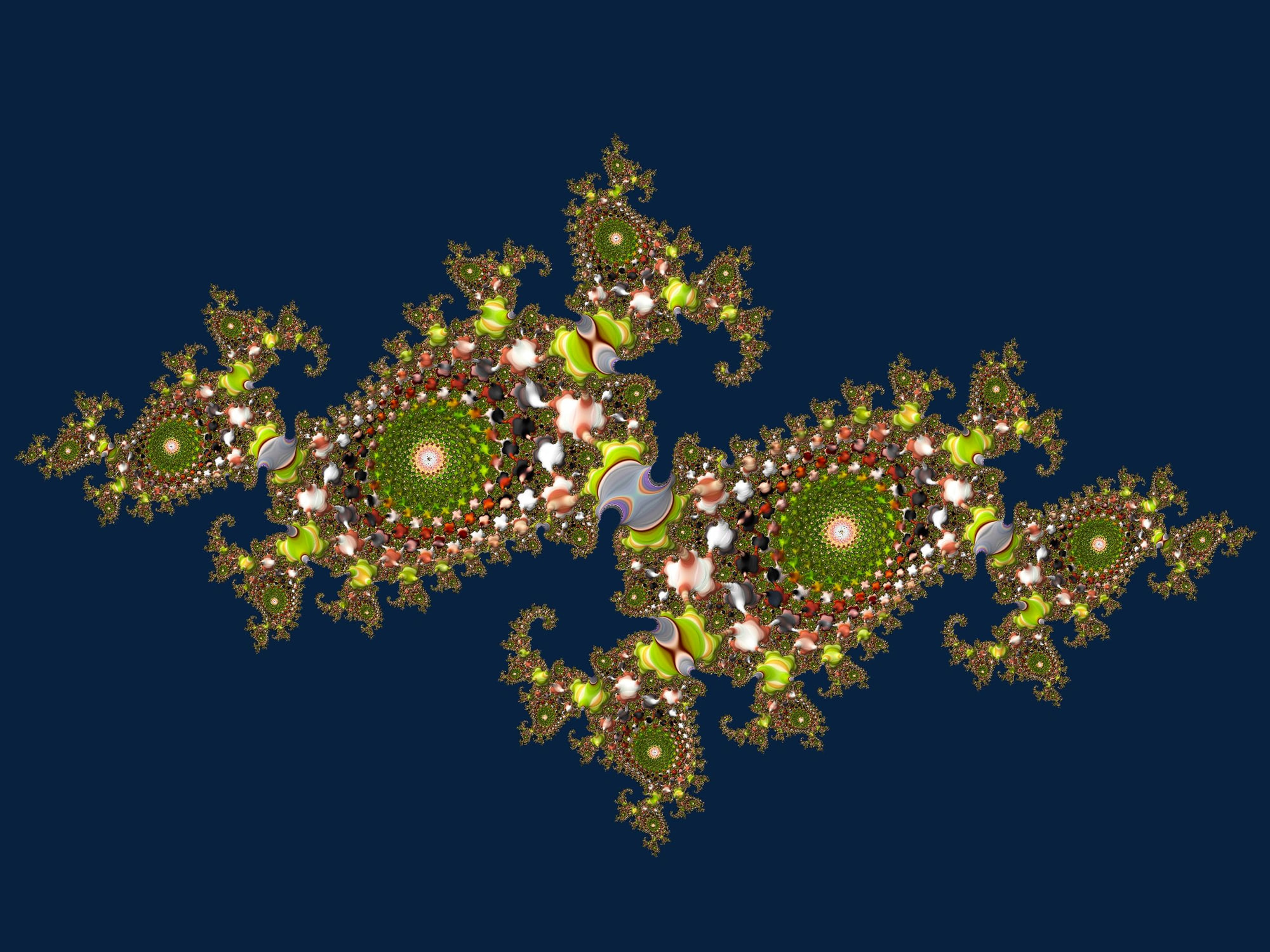
Mandelbrot Metal 2.0 is about making fractal exploration feel more connected.
The Mandelbrot Set has always been a kind of map: a compact shape containing endless coastlines, spirals, bulbs, filaments, and neighborhoods that change character as you zoom. Julia Sets are the companion worlds attached to that map. In version 2.0, Mandelbrot Metal brings those worlds closer together with a new Julia Set workflow: tap a point in the Mandelbrot Set, and the app opens the matching Julia Set generated from that exact complex value.
Tap again to return to the exact Mandelbrot view where you started.
That one gesture changes the rhythm of exploration. Julia Sets are no longer a separate destination buried behind settings. They become something you can sample, compare, save, and return from, almost like stepping through a doorway and then stepping back to the same spot on the trail.
What Is a Julia Set?
Both the Mandelbrot Set and Julia Sets are built from the same simple-looking equation:
z = z² + c
The magic comes from repeating that equation over and over.
For the Mandelbrot Set, each pixel supplies the value of c, while z starts at zero. The app asks: if we keep applying z = z² + c, does the result stay bounded, or does it escape toward infinity?
For a Julia Set, the roles shift. The value of c remains fixed throughout the image, and each pixel provides the initial value of z. The app asks the same escape question, but now every pixel is tested against a single chosen constant.
That means every point on the Mandelbrot Set can act like a seed for a Julia Set. Some seeds produce dusty islands. Some produce branching lightning. Some create lace, coral, spirals, dendrites, or quiet fields of almost-symmetry. The Mandelbrot Set is the catalog; Julia Sets are the individual prints.
The most interesting part is that nearby Mandelbrot points can produce very different Julia forms. A tiny movement near a boundary can turn a connected shape into floating fragments, or a calm loop into an elaborate spray of filaments. Mandelbrot Metal 2.0 is designed around that relationship.
New in Version 2.0
The headline feature is direct Mandelbrot-to-Julia exploration.
While viewing the Mandelbrot Set, single-tap any point that interests you. Mandelbrot Metal captures that point as the Julia constant, switches into Julia Set mode, and renders the matching Julia Set. The selected constant is shown in the HUD as the active Julia cvalue, so you can see exactly what you are exploring.
When you are done studying that Julia Set, single-tap the Julia view to return to the exact Mandelbrot position, zoom level, and iteration state that generated it. This makes Julia exploration reversible. You can tap, inspect, return, tap somewhere nearby, and compare the results without losing your place.
Version 2.0 also adds and refines several supporting features:
- A Fractal Type selector for switching between the Mandelbrot Set and the Julia Set.
- Julia-aware bookmarks that preserve the fractal mode and Julia cvalue.
- Shared bookmark files that can carry Julia constants while remaining compatible with older bookmark data.
- A HUD that identifies the active mode and shows the Julia constant when relevant.
- Improved Julia rendering at deeper zooms.
- Expanded ultra-wide palette options for smoother gradients and more varied artwork.
- Performance refinements in the render path, including GPU shader cleanup and more efficient deep-render redraw scheduling.
- A cleaner iPad utility row above the floating toolbar, with quick access to reset, fractal type, and more options.
Taken together, these changes make Julia Sets feel like a natural part of the app instead of a separate experiment.
How to Explore Julia Sets
Start in the default Mandelbrot Set mode. Pan and zoom until you find a region with interesting structure: a bulb edge, a spiral valley, a seahorse tail, a filament junction, or any place where the boundary looks alive.
Single-tap a point in the Mandelbrot view. The app uses that exact complex coordinate as the Julia constant c and opens the corresponding Julia Set.
Study the shape. Julia Sets often feel more symmetrical than Mandelbrot views, but they are not all the same. Some are connected, some break apart into dust, and many sit somewhere between those extremes. Try looking for branching structures, mirrored curls, negative space, and repeating shapes that could become strong compositions.
Single-tap again while in Julia mode to return to the Mandelbrot view. You will land back at the same position and zoom level you came from, with your exploration state preserved.
Then tap another Mandelbrot point nearby. Small changes in c can create surprisingly different Julia Sets, so this back-and-forth workflow is one of the best ways to build intuition. You are not just switching modes; you are learning how regions of the Mandelbrot Set generate families of Julia images.
Using the Fractal Type Selector
If you want to switch modes directly, use the Fractal Type control. It uses the function icon in the toolbar or utility row and lets you choose between:
- Mandelbrot Set
- Julia Set
Mandelbrot Set remains the default mode. It is usually the best starting point when you want to search for new Julia seeds because the tap-to-Julia workflow depends on choosing a point from the Mandelbrot plane.
Julia Set mode is useful when you want to keep working on a Julia composition you have already found, reopen one from a bookmark, or explore the current Julia constant with the same visual tools you use elsewhere in the app.
The HUD follows the active mode, so screenshots, captures, and exploration sessions clearly identify whether you are viewing a Mandelbrot Set or Julia Set. In Julia mode, the HUD also shows the selected c value.
Saving Julia Discoveries
Bookmarks are more capable in version 2.0.
When you save a Julia view, Mandelbrot Metal now stores the active fractal mode and the Julia constant. Reopening that bookmark restores the Julia Set rather than flattening it back into a generic Mandelbrot state. This is especially useful when you are building a series of related images from different seeds.
Manage Bookmarks also includes mode-aware organization. You can sort by mode, and name-sorted rows show the saved mode, making mixed Mandelbrot and Julia collections easier to scan.
Shared bookmark files have been updated, too. Exported bookmarks can include the fractal mode and Julia cvalue, so Julia discoveries can be shared and reopened with their mathematical identity intact.
Color, Palettes, and Julia Sets
Julia Sets respond beautifully to color. Because many Julia forms exhibit strong symmetry, branching, or a lace-like structure, palette choices can completely change the emotional character of the image.
Version 2.0 expands the ultra-wide palette catalog, giving deep zooms and exported artwork more long-form color ramps to work with. Ultra-wide palettes are especially useful when you want smooth gradients across high-iteration images. They help avoid abrupt color cycling and give delicate structures more room to breathe.
For Julia exploration, try this simple workflow:
- Tap from Mandelbrot into a promising Julia Set.
- Keep the composition fixed.
- Cycle through several palettes.
- Adjust iteration depth and contrast.
- Bookmark the strongest variation.
This separates shape discovery from color discovery. First find the form, then find the mood.
Performance and Deep Rendering
Mandelbrot Metal 2.0 also includes rendering improvements designed to preserve quality while reducing unnecessary work.
The Metal shader path has been cleaned up so repeated escape-color logic is shared more efficiently, neutral contrast avoids an unnecessary power operation, and unused per-sample work has been removed. The CPU deep-render path also coalesces progressive redraws, so the app schedules fewer redundant display updates while tiles are being rendered.
In practical terms, the goal is simple: keep interaction responsive, keep deep renders stable, and do it without lowering iteration counts, samples, precision, or palette fidelity.
Julia rendering now uses the shared Metal path at normal zoom levels and can hand off to the CPU deep-render path at higher magnifications. Mandelbrot-specific perturbation remains focused on Mandelbrot exploration, but Julia sets benefit from the same visual controls, palette pipeline, capture tools, and bookmark system.
A Good First Julia Session
If you are new to Julia Sets, try this:
- Open Mandelbrot Metal and stay in Mandelbrot Set mode.
- Zoom toward a boundary region with spirals or thin filaments.
- Single-tap a point near the boundary.
- Look at the Julia Set that appears.
- Tap again to return.
- Tap a nearby point and compare the new Julia Set.
- Save the best one as a bookmark.
- Try several ultra-wide palettes before exporting.
The important thing is to sample. Julia Sets reward curiosity. A point that looks modest in the Mandelbrot Set can generate a spectacular Julia image, and a point just a few pixels away can tell a completely different story.
Why This Release Matters
Mandelbrot Metal has always been about precision, speed, and the pleasure of discovering structure. Version 2.0 adds a new layer to that experience: relationship.
The Mandelbrot Set is no longer only something you zoom into. It is also a field of Julia possibilities. Every tap can reveal the companion image hidden inside a coordinate. Every saved Julia bookmark can carry the exact constant that created it. Every return tap brings you back to the map, ready to choose again.
That makes Mandelbrot Metal 2.0 both more powerful and more playful. It keeps the mathematical rigor, but it shortens the distance between seeing something interesting and asking the next question:
What world lives inside this point?
Michael