
Tutorial
How to Capture Print-Ready Fractal Art (Up to 8K) in Mandelbrot Metal
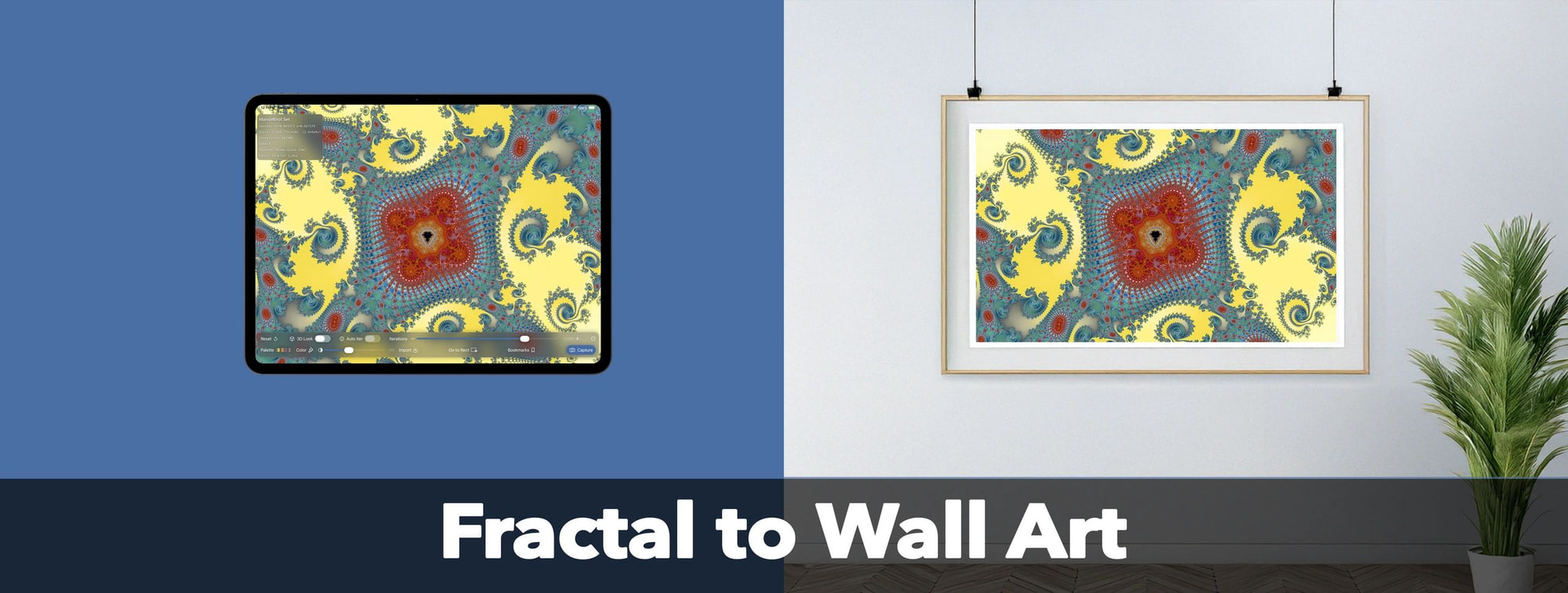
Fractals make stunning physical artwork — from large posters and canvas prints to desktop frames and postcards. And one of the most powerful features in Mandelbrot Metal is its ability to export high-resolution, print-quality images far beyond what your device screen shows.
In this tutorial, I’ll walk you through every step of creating a piece of fractal art that’s ready for printing at professional resolutions — up to 8K (7680px) on supported devices.
Whether you’re making a gift, wall art, or a gallery piece, here’s how to get the best results.
1. Start With a Strong Composition
Before touching export settings, take a moment to frame your fractal like a photographer framing a shot.
Look for:
- Balance — large shapes on one side, fine detail on the other
- Leading lines — spirals, tendrils, lightning paths
- Contrast zones — light vs dark areas that guide the eye
- Natural “story” elements — seahorses, minibrots, valleys, cliffs
Use pinch-to-zoom and drag to nudge the scene until the geometry feels intentional and centered.
Pro tip:
Try toggling between a few palettes while framing. Certain palettes reveal structure more clearly and help you find cleaner compositions.
2. Increase Iterations When It Helps (Not Because You “Have To”)
Iterations are a creative control, not a hard rule.
In Mandelbrot Metal, you can get gorgeous results at deep zooms (even around 10⁶ and beyond) with relatively low iteration counts. Other times, you may want to crank the iterations much higher to smooth gradients, reveal subtle structure, or clean up banding. It depends entirely on the region, the palette, and the look you’re going for.
A practical way to think about it:
- Start from the current/default iteration setting.
- Zoom to a composition you like.
- Ask yourself: “Does increasing iterations actually reveal more of what I want to see, or does it just make the render slower?”
- If edges look mushy, detail is falling apart, or banding is distracting (and you don’t want that effect), bump iterations up in steps and let the image refine.
- If you already like the graphic, banded, or posterized look, there’s no reason to push iterations higher just because you’re “supposed” to.
In other words, there are no strict rules tying zoom level to iteration count. Use iterations as a clarity and style dial: turn it up when it reveals more of what you care about in the image, and stop when the extra detail no longer improves the art you’re trying to create.
3. Pick a Palette Optimized for Print
Digital displays and physical prints interpret color differently, so choose palettes that translate well:
Great for print:
- Ultra-Wide 768-step palettes (smoothest gradients)
- Metallic or glossy palettes with strong contrast
- Palettes with well-spaced color stops
- Display P3 palettes (more vivid reds/oranges)
Be cautious with:
- Extremely dark palettes (detail may disappear)
- Neon-only palettes (can shift in CMYK print workflows)
- Palettes relying on narrow hue bands (banding risk at large scale)
If unsure, test two or three palettes — the difference on paper can be dramatic.
Find out more about Mandelbrot Metals' palette system.
4. Export at the Highest Resolution Available
Tap the Capture button and choose your desired resolution.
Based on your device, you’ll see something like this example for the iPad Pro 13-inch (M5):
- Canvas (exact resolution of the screen in pixels)
- 4K (3840×2880)
- 6K (6144x4608)
- 8K (7680×5760) — available on high-end hardware like the M-class iPads and newer iPhones
- Custom dimensions (device-dependent)
Choose the highest resolution your device supports.
There’s no downside — Mandelbrot Metal renders the image at full internal precision.
Pro tip:
If printing larger than 24×36”, always export at 8K.
5. Choose the Right Custom Export Dimensions for Printing
Mandelbrot Metal doesn’t include an in-app cropping or aspect-ratio tool, but you can export at custom pixel sizes, which gives you full control over the final print format.
The key is to choose export dimensions that match the aspect ratio of your intended print.
For example:
- 3:2 prints (common photo sizes like 12×18, 20×30) → export something like 4500×3000, 6000×4000, or 7500×5000
- 4:3 prints (iPad ratio, classic frame sizes) → 4000×3000, 6000×4500, 8000×6000 (device-dependent)
- 1:1 square prints → 3000×3000, 5000×5000, 6000×6000
- Widescreen 16:9 posters or monitors → 5120×2880, 7680×4320 (8K)
When preparing a print:
- Frame your fractal using the standard viewport.
- Decide what aspect ratio your final print will use.
- Tap the Capture button and select Custom.
- Enter a custom width and height at export time that matches that ratio.
- The exported file will render at that exact pixel dimension, preserving your chosen composition.
This approach gives you precise control without cluttering the main UI with cropping tools — and it produces print-ready dimensions for any format you need.
6. Save as PNG for Maximum Quality
Use PNG for:
- Posters
- Canvas prints
- Art prints
- Tee shirts, hats, etc.
- Professional reproduction
Avoid JPEG unless file size is a concern; PNG preserves every color transition perfectly — essential for fractal gradients.
7. Test Print at Small Scale First
Before committing to a 36” canvas, make a small 4×6 or 5×7 test print at home or at a local print shop.
What to check:
- Are gradients smooth?
- Do details hold up at close range?
- Is the palette too dark/light for the paper?
Small test prints save money and help you dial in the perfect look.
8. Print on High-Quality Paper or Canvas
For best results:
- Choose matte fine-art paper for scientific/architectural looks
- Choose satin or glossy for metallic/mirror-like fractals
- Choose canvas for painterly depth and room decor
If printing with a service like Mpix, Printique, White House Custom Colour, or a local lab, choose their “fine art” or “giclée” options (if available) for maximum fidelity.
Final Thoughts
Exporting fractal art is one of the most satisfying parts of Mandelbrot Metal — your digital explorations become real, physical artwork you can hang, gift, or even sell.
Once you learn how to tune iterations, pick the right palette, and export at high resolution, you can create prints that rival professional digital art.
Learn more in the Mandelbrot Metal User Guide and Creative Guide.
Don't have Mandelbrot Metal yet? Get it on the App Store